

Taking the first steps to learn new technologies has its challenges but also helps us improve our professional skills. It is common for us to make mistakes during this learning process. And, as cliché as it may be, it is crucial to emphasize that making mistakes is part of it.
This is because errors provide us with more significant input into the learning process. So, let’s discuss how to deal with some common mistakes among RPA developers, understand why they are happening, and even try to avoid them in your automation.
Common mistakes in RPA beyond implementation
During the organization process to orchestrate RPA automation projects, you must be careful about some mistakes. Despite being part of everyday life, many errors can compromise the successful execution of automated tasks. Errors are also part of the risks, and although some of them are foreseen or accepted, others are not so much.
Errors can also go far beyond the implementation of your bot’s code. They may appear during process mapping, for example. In addition to mapping the paths to success, it is also essential to map the steps that can go wrong and how to deal with them. Automation needs to be prepared for this.
Errors may also occur during this mapping when understanding what can be improved and whether the process is, in fact, worth automating.
Another common mistake is underestimating security requirements.. For example, you must not forget which systems the bot should access and what access it will need. Having this well mapped and credentials released securely can avoid several problems.
The practice of Shadow IT, when unauthorized systems and methodologies are combined with other people involved in the automation project, can also cause many errors. But now, let’s focus on other errors that involve the learning process during your first steps in developing automation with Python RPA. Follow the next topics.
8 common mistakes in your first development
Now, let’s explore some common mistakes when developing automation in Python RPA, specifically with the BotCity framework.
1. ‘ModuleNotFoundError’ or ‘No module named botcity’ error when running the project
This error means that you skipped the bot installation step or did this step, but possibly in a different environment than the one you are using for execution.
To resolve this, run the following command in the terminal:
pip install --upgrade -r requirements.txt
This must be done, as this file contains all of the project’s external dependencies. It would be best if you also do it when using both BotCity Framework Desktop and BotCity Framework Web. You can find more guidance in the documentation about installing dependencies.
Important: if you use virtual environments to run your project, remember to confirm which environment you are in and what version of Python it is. This verification will also avoid some errors.
2. “No such file or directory: ‘requirements.txt'” error
This error can happen if you are trying to fix the previous one. You may have run the command mentioned in the item about the “ModuleNotFoundError” error within the wrong project folder. Check the folder you are in your terminal or adjust file access by command.
3. ‘OSError: [WinError 216]’ error
In this error, the entire message may look like “OSError: [WinError 216] This version of %1 is not compatible with the version of Windows you’re running. Check your computer’s system information and then contact the software publisher”.
The scenario is usually this: you are configuring a Webdriver in your code for your web bot, and, in this case, you chose the Firefox browser.
# Setting default browser to Firefox
bot.browser = Browser.FIREFOX


# Setting the Geckodriver path
bot.driver_path = "<Webdriver path>"
To configure this Webdriver, we usually download it from the Geckodriver releases page.. Then, we identify the correct Webdriver for our operating system, choosing one of the items in the downloadable assets part:
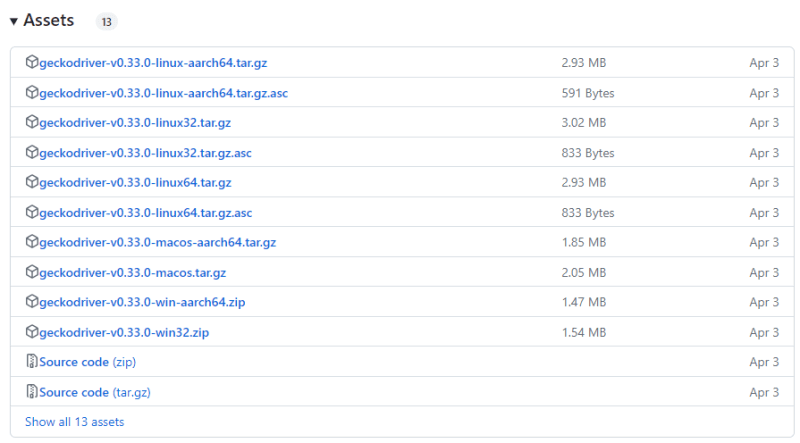
It is essential to choose carefully because confusion is common when we use, for example, the Windows 64-bit operating system and end up trying to configure geckodriver-vX.YY.Z-win-aarch64.zip when, in fact, we should download geckodriver-vX.YY.Z-win64.zip.
Configuring the Geckodriver with the correct version makes it possible to open the browser running code again.
4. Driver incompatibility with the browser
It is also essential to confirm the browser version you will use and validate that the Webdriver is compatible with that version. Using Firefox as an example again, you can understand by looking at the version when clicking Menu > Help > About Firefox.

When validating the version of your browser or the browser that your automation will use, check the release information of the selected Webdriver to see if it is compatible with the version you will use.
In the example we used, we observed that the version of Firefox that I will use in the automation is 114.0.2, and the release states the information that the minimum version required is 113.0:

In this case, I could use this same Geckodriver in my automation as it is compatible.
5. When systems block use because they identify a bot
In cases like this, you can try to humanize the process. What does that mean? You can move the mouse on the screen, as a person might. Or even adjust the typing so that it is not content directly pasted into the field to be filled out.
This type of problem happens more in Web automation projects. But to “humanize” the execution, you can use some features of the BotCity desktop framework, which could be a good alternative. Below there are examples of the commands you can use:
- Regarding typing, you can use the following BotCity framework command (see more examples in our documentation):
bot.kb_type("Place your text here.")
- Regarding moving the mouse cursor, you can use the following BotCity framework commands (see more examples in our documentation):
bot.mouse_move(x=100, y=200) # x and y are coordinates
6. When the robot runs much faster than the systems it is accessing
Because we are creating automation to run with code, this execution time can be much faster than expected or much faster than the systems we interact with can handle.
Because of this, execution errors can happen because a specific step on the screen still needs to be finished for the next step to occur within the process.
On occasions like this, it may make sense to evaluate the possibility of taking breaks between some of these steps.
One way to do this with the BotCity framework would be (see other examples in the documentation):
# wait for five seconds
bot.wait(5000)
You can also create logic or rules in your code to ensure the robot is on the right screen before executing a specific command. One of the ways to do this would be to use computer vision and look for an anchor on the screen that should be open and in use.
7. Error in accuracy when finding elements on the screen
This problem can happen for a few reasons:
- You developed the bot in a different environment than it will run in production;
- The screen resolution has changed.
To alleviate or prevent this problem from continuing to occur:
- Try to develop your automation in an environment and resolution as close as possible to how the bot should execute in production;
- Another solution is to adjust the accuracy of the computer vision algorithm in the generated code.
See the following code example generated by computer vision:
    if not bot.find("window", matching=0.97, waiting_time=10000):
        not_found("window")

    bot.click_relative(221, 206)
The matching parameter usually has a maximum value of 0.97. You can adjust the value to at least 0.90. This configuration may help. But be careful not to reduce it much more than that, to the point that the algorithm loses its efficiency in finding the element your code needs to identify.
8. “unable to find valid certification path to requested target” error
This error when running BotCity Studio may occur in your environment if there are certificate blocks configured. One of the solutions is to do the following step-by-step:
- Open the SDK folder. In the wizard, you can do it by clicking on “Open SDK folder”;
- Access the folder called conf and open the conf.bcf file in edit mode (you can do this by opening it with notepad, for example);
- Add the line ignoreSSL=true, and remember to save this change in the conf.bcf file;
- Restart BotCity Studio, and the issue should be resolved.
💡 Learn more: BotCity FAQ.
Have you ever experienced any other errors in RPA?
Please share in the comments, and let’s learn from different experiences. Or, join our community to exchange ideas and knowledge about RPA automation. To join our global RPA community, join our Slack or check our fórum.
If you have any questions, just call us! And don’t forget to create your free accountto test the features we explore in our content.


