Managing and monitoring errors in RPA automation projects becomes increasingly important as your operation scales. It is crucial to understand the mistakes in robot executions to minimize them or provide appropriate guidance, depending on what happens. In this article, we will understand how to manage this, the importance of monitoring your automation, and how to do this.
RPA automation management
RPA automation can have several steps. We need to understand how these steps should work and what is essential for the stakeholders: the team that requested the demand, the user area, and the development team. And in this mapping, we must also include what errors may occur, as some we expect to happen.
We need to be clear about the idea that RPA will fail anyway. So we need to monitor it so that the reaction to errors is faster and more efficient and that the correct people know what happened and where the problem is so that they can act to correct it. In other words, we need to have an effective way of communicating the error.
⚠️ Learn more about the importance of orchestration in RPA Orchestration.
RPA automation error management
If we know the process well and there is up-to-date documentation on how things should be done and where failures can occur, we can predict how to deal with these errors in our robot and develop our code based on that.
⚠️ Learn more at common mistakes when getting started with Python RPA.
And it is also interesting to understand the types of errors that can happen with automation. An error may be related to how you developed the code or to the system that is part of the process, which has some updates and needs new other forms of access or data transfer, among many others.
How to register errors in BotCity Orchestrator
To create an error register on your bot, you must connect to BotCity Orchestrator by installing the SDK. This installation may vary depending on your programming language; for more details, consult the documentation. In this example, we will use Python.
In your terminal, run the following command:
pip install botcity-maestro-sdk
Remember to add the dependency of the newly installed library to the requirements.txt file, for example:
botcity-maestro-sdk>=0.3.3,<1.0
After that, import the library into your code:
from botcity.maestro import *
And add the following commands:
# Disable errors if we are not connected to Maestro
BotMaestroSDK.RAISE_NOT_CONNECTED = False

# Instantiating the Maestro SDK
maestro = BotMaestroSDK.from_sys_args()
# Fetching the details of the current task being executed
execution = maestro.get_execution()
It is good practice for your code to be within a try/catch or try/except structure, depending on the programming language. This means that whatever is inside the try scope will try to be executed, and if an exception happens, it will go to the except code block.
To create an error, add the following code snippet:
    except Exception as ex:
       maestro.error(
            task_id=execution.task_id,
            exception=ex
        )
You can also configure for different errors, such as ZeroDivisionError and ImportError, among many others. Or even create custom exceptions if necessary. It can be a good practice to ensure the readability of your code and the business rules it needs to execute.
How to check the error by task
If you have done the configuration above, you can monitor whether an error has occurred. One way is within the task itself. In the task queue, click the ID of the task you want to track.
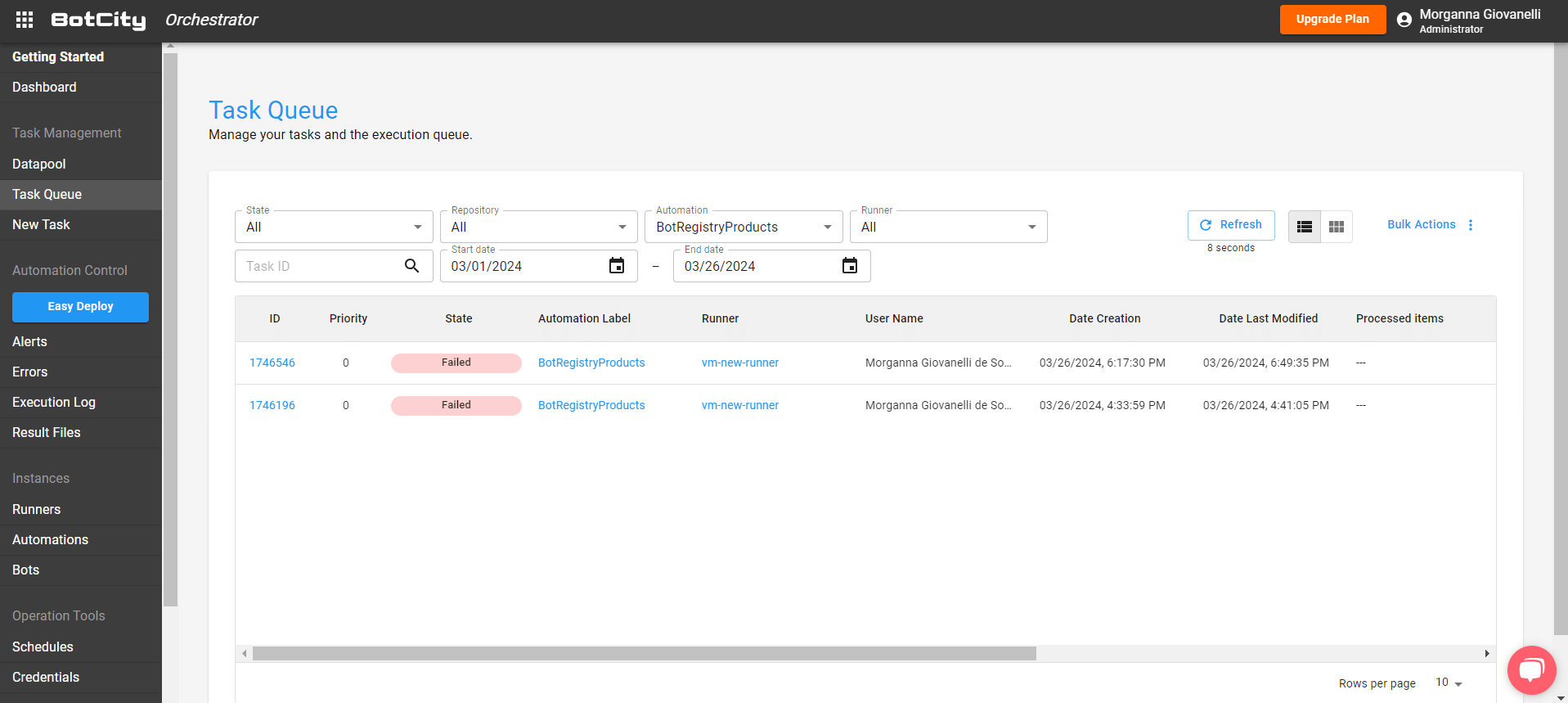
One of the options at the top of the screen will be “Errors.” Click on it, and you can view more details in case of an error.

Click on the error you want to check for more details, and you will have new information about it. You can click the “View” button if you want even more information.

This screen is quite interesting as it shows what happened with the error, including StackTrace, Tags, Files, and Screenshots, if you add them to your code. We will see how to do this later.

How to check the error on the “Errors” screen
In the “Automation Control” category, click on the “Errors” option in the menu on the left side of BotCity Orchestrator. This way, you will have access to errors. Check the filters to make finding what you need to analyze easier, for example, task ID, repository, automation name, and period.

Identify the error that you need to verify, click to expand it, and click the “View” button:

This way, you will also have more details about what happened so that you can effectively analyze what needs to be done and explicitly where the error lies.

How to receive error notifications by email
You can also notify your team by email when you create these errors, as shown in this article and our error documentation. To activate this option, click on your name in the top right corner and choose the “Profile” option. After that, click on the “Notifications” option on the left side of the menu. You will have some options to receive the notification, and one of them is called “New error event.”

This possibility facilitates automation management and team communication so you can quickly see what happened and which automation was affected. To access the screen, click the link options provided in this email.

Other error settings
In addition to the previous guidelines, as we mentioned, you can take a screenshot when the error occurs and attach files related to the error if necessary. They are parameters in the function. Follow below how to add them.
How to add a screenshot to analyze the error
You must add the “screenshot” parameter to the “error” function. Below is an example:
try:
    div = 0 / 0
except Exception as error:
    file_path = '/home/test/screenshot.png'
    maestro.error(
        task_id=task.id,
        exception=error,
        screenshot=file_path
    )
How to add attachments to analyze the error
You must add the “attachments” parameter to the “error” function. Below is an example:
try:
    div = 0 / 0
except Exception as error:
    attachments_files = ['/home/test/error.png', '/home/test/test.txt']
    maestro.error(
        task_id=task.id,
        exception=error,
        attachments=attachments_files
    )
How to test the functionality
To do everything we explained in this tutorial, you can create your free account, follow the steps, and take the opportunity to test this error management in your use case. And join our community to exchange experiences about the world of RPA automation.